Discover simple steps to free up valuable storage on your PlayStation 5 console. Gamers often face full hard drives, hindering new game downloads and updates. Learning how to delete games on PS5 is a crucial skill for every console owner in the USA. This guide provides clear, easy-to-follow instructions, helping you manage your game library effectively. We cover methods from the home screen and system settings, ensuring you can quickly remove unwanted titles. Optimize your PS5 performance and make room for exciting new adventures. Keep your console running smoothly without storage worries, enhancing your overall gaming experience. Say goodbye to storage limitations and hello to more gaming. This informational resource ensures you stay ahead of PS5 storage challenges. Whether you need space for a massive update or a brand new blockbuster, understanding how to delete games on PS5 is essential.
How to Delete Games on PS5 from the Home Screen?
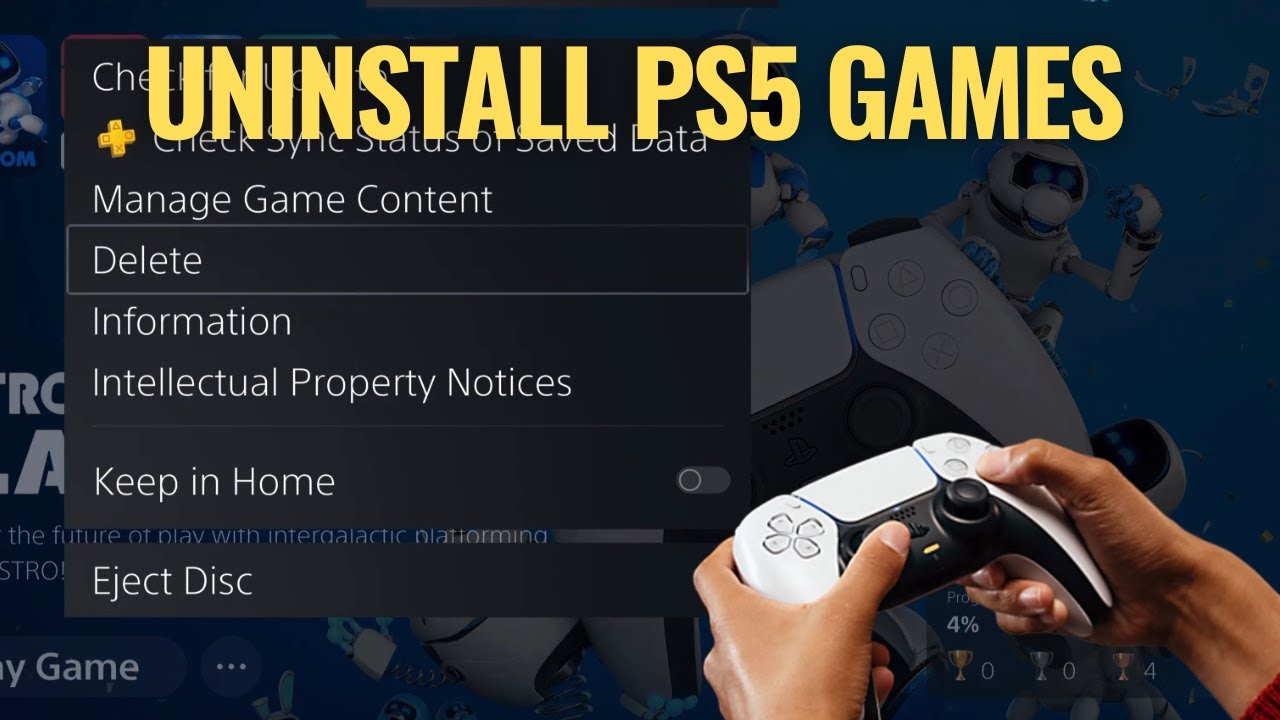
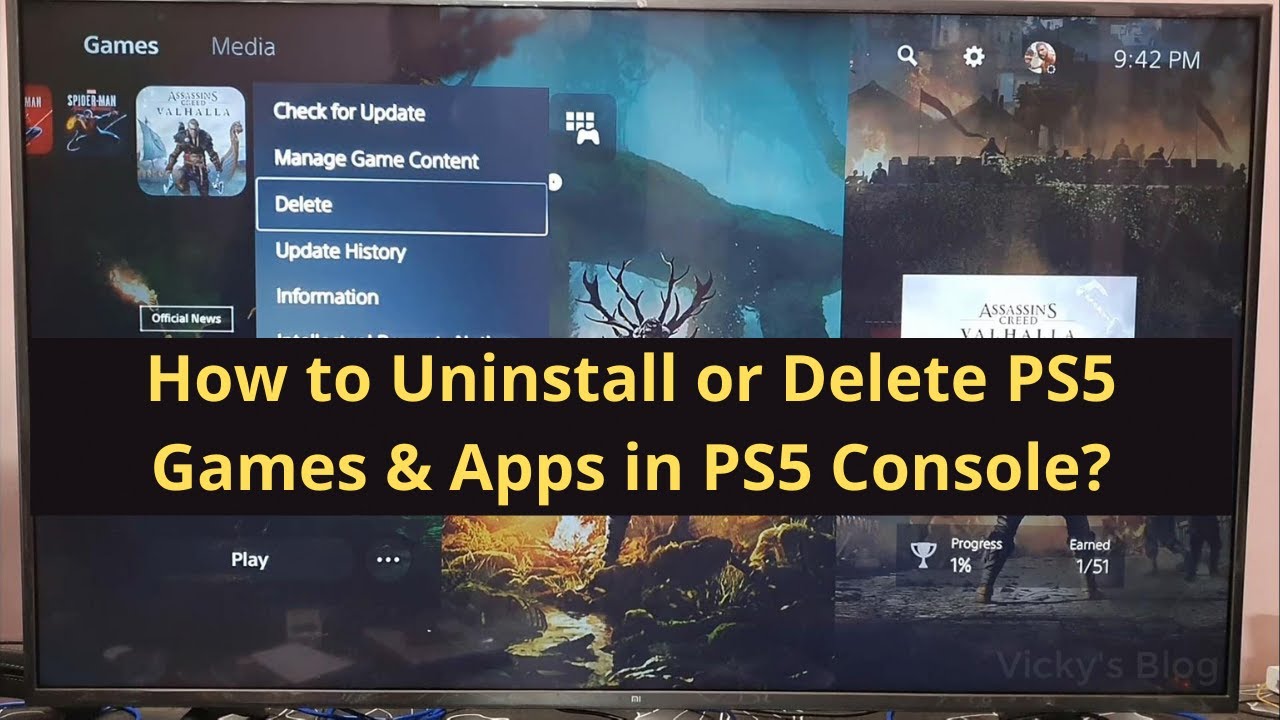
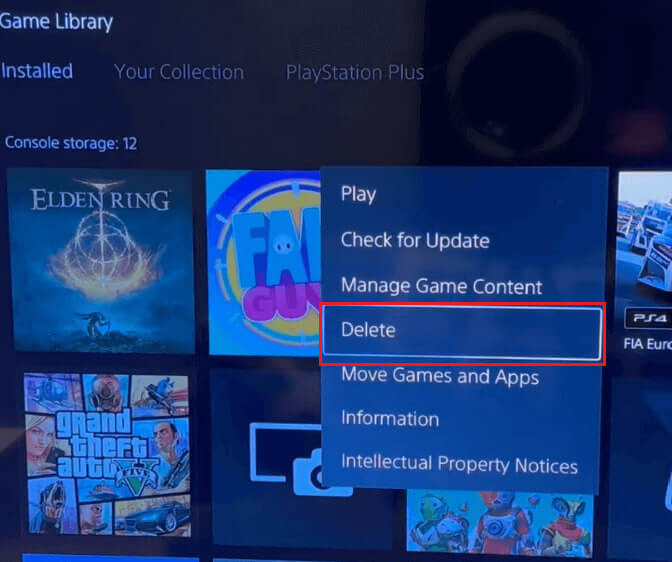
To delete a game from the PS5 Home Screen, simply highlight the game's icon, press the Options button on your controller, and select 'Delete'. Confirm your choice to remove the game and free up valuable storage space on your console. This is often the quickest method.How to Delete Games on PS5 from Storage Settings?
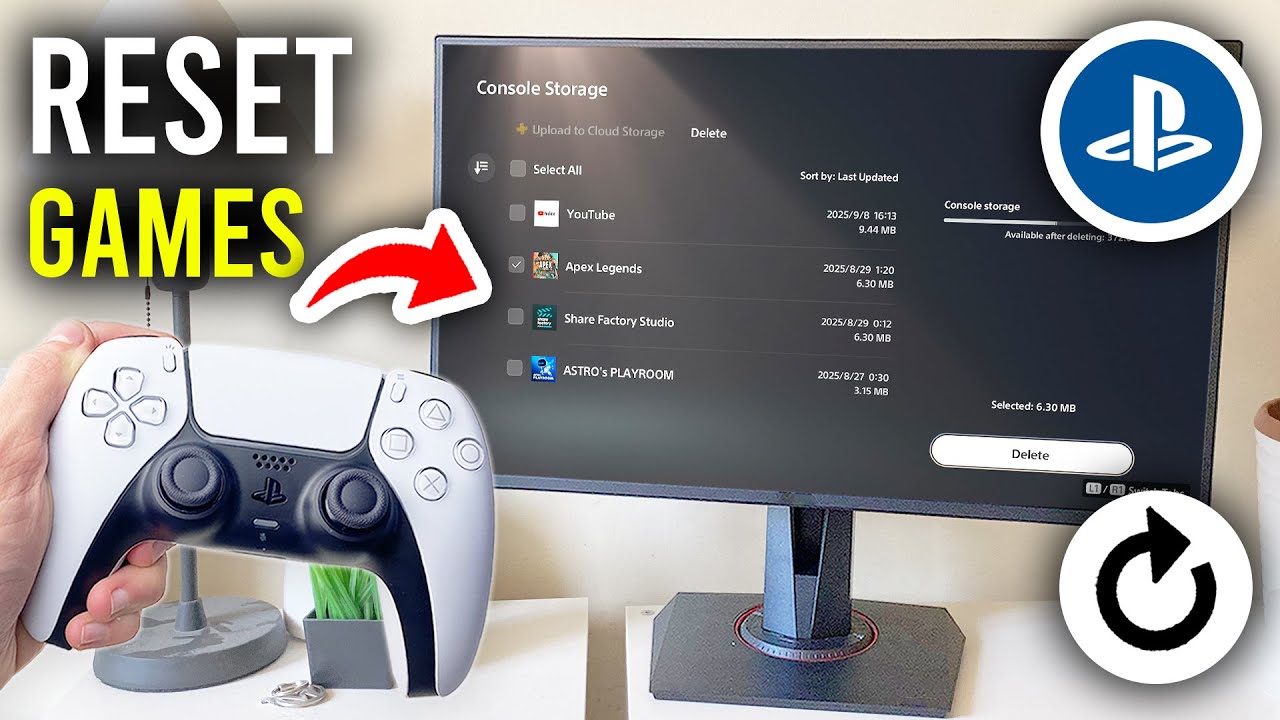
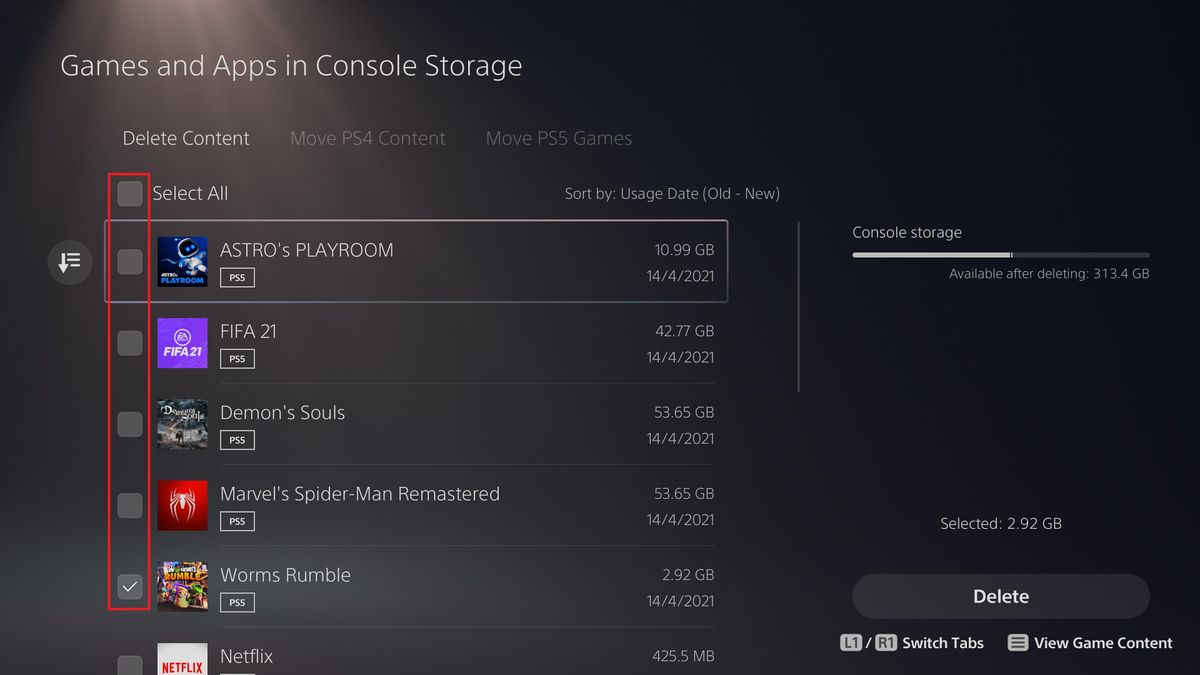
For a more organized approach, go to Settings, then Storage, and select 'Games and Apps'. Here, you can view all installed games, select the ones you wish to delete, press Options, and confirm 'Delete'. This method allows for bulk deletion and a clear overview of your storage usage.Does deleting a game remove save data on PS5?
No, deleting a game on PS5 typically does not remove your saved data. Game save files are stored separately from the main game installation. This means you can uninstall a game to free up space and, if you later reinstall it, your progress will still be available, allowing you to pick up where you left off.What is the easiest way to free up space on PS5?
The easiest way to free up space on your PS5 is by deleting games you no longer play or have completed. Utilize either the Home Screen quick delete option or the Storage Settings menu for more control. Additionally, consider moving less frequently played games to an external USB extended storage drive to keep your internal SSD clear.Can I redownload games after deleting them from my PS5?
Absolutely, yes! Any game you have purchased or redeemed on your PlayStation account can be redownloaded at any time after deletion. Simply navigate to your Game Library, find the desired title, and initiate the download. You will not need to repurchase the game to access it again from your digital library.How do I manage my PS5 storage efficiently?
Efficient PS5 storage management involves regularly reviewing your installed games and deleting or moving those you don't frequently play. Consider using an external SSD for PS4 games or for storing PS5 games that you don't need immediate access to. Also, delete old screenshots and video clips from your Media Gallery, as these can consume significant space.Running low on storage can be a real buzzkill for any PlayStation 5 owner. You want to download that exciting new title or update, but your console screams, "No space!" Don't fret. Knowing how to delete games on PS5 is a simple yet powerful skill. It helps you keep your console lean and ready for action. This guide will walk you through the process, making space management a breeze.
We will explore exactly how to delete games on PS5, ensuring you can quickly free up storage. This is for any US gamer looking to optimize their PlayStation 5. It is all about giving you control over your digital library. Who wants to miss out on new releases because of a full hard drive? Not you, that's for sure!
Deleting Games on PS5: Your First Steps
Getting started with deleting games on PS5 is surprisingly straightforward. You have a couple of easy paths to take. Both are efficient for clearing out those digital dust collectors. Let's make some room for your next gaming obsession.
How to Delete Games on PS5 from the Home Screen
This method is super fast and perfect for quickly uninstalling a game you just finished. It's great for freeing up space right away. Many gamers find this to be their go-to option. Deleting games on PS5 this way saves precious time.
- First, navigate to the game you want to delete on your PS5 Home Screen.
- Press the Options button on your DualSense controller.
- A side menu will pop up on your screen.
- Select "Delete" from the available options.
- Confirm your choice when prompted. The game will now be removed.
How to Delete Games on PS5 Using Storage Settings
For a more comprehensive view of your PS5 storage, head into the system settings. This allows you to see how much space each game occupies. It helps you make informed decisions about what to keep. Managing storage efficiently is key to smooth gaming.
- Go to the Home Screen and select the "Settings" icon (it looks like a gear).
- Scroll down and choose "Storage."
- Here, you will see a breakdown of your Console Storage.
- Select "Games and Apps." This displays all your installed titles.
- Highlight the game you wish to remove.
- Press the Options button, then select "Delete."
- You can even select multiple games here if you want.
- Confirm your deletion. Your PS5 will now have more room.
PS5 Storage Management: A Quick Table
Understanding your PS5 storage is easier with a quick glance. This table summarizes key aspects of managing your console's space. It helps you decide the best way to keep things tidy. Knowing these facts helps you effectively delete games on PS5.
| Action | Benefit | Location |
| Delete Games | Frees immediate space | Home Screen or Settings Storage |
| Move Games to USB Drive | Expands storage, keeps games | Settings Storage Extended Storage |
| Delete Game Data/Saves | Removes small residual files | Settings Saved Data and Game/App Settings |
| Check Storage Usage | Identifies large files | Settings Storage |
What Others Are Asking?
How do I uninstall a game from my PS5 library?
Uninstalling a game from your PS5 library is quite simple. Go to the game's icon on your Home Screen, press the Options button, and then select 'Delete'. Alternatively, access Settings, then Storage, and under 'Games and Apps', you can choose and delete titles individually. This quickly frees up space on your console's internal drive.
What is the difference between deleting and archiving games on PS5?
Deleting a game removes all its data from your PS5, requiring a full re-download to play again. Archiving, however, is not a native PS5 feature. On other platforms, it might remove game files but keep saves. For PS5, you either delete or move games to extended storage, which is similar to archiving, but retains playability from the external drive.
Will deleting a game on PS5 also delete my saved data?
No, deleting a game on PS5 typically does not delete your saved data. Your game saves are usually stored separately. They remain on your console's storage or in the cloud (if PlayStation Plus is active) even after the game itself is uninstalled. This means you can reinstall the game later and pick up right where you left off.
How do I free up space on my PS5 without deleting games?
To free up PS5 space without deleting games, consider moving titles to an external USB extended storage drive. This allows you to store and play PS5 games, freeing up the internal SSD. You can also delete old screenshots and video clips from your media gallery, as these can accumulate over time and consume significant storage space. Regularly check for unnecessary downloads.
Can you redownload games after deleting them from PS5?
Yes, absolutely! You can always redownload games after deleting them from your PS5. Once a game is purchased or added to your library, it remains accessible. Simply go to your Game Library, find the desired title, and initiate the download again. You will not need to repurchase the game, provided you own the license for it.
FAQ about How to Delete Games on PS5
What is how to delete games on ps5?
Deleting games on PS5 means removing the game's installation files from your console's internal storage. This action clears up valuable space on your PlayStation 5. It's an essential maintenance task for managing your digital game library effectively. It allows you to install new games or updates without storage warnings.
Why delete games on ps5?
You delete games on PS5 primarily to free up internal storage space. The PS5's SSD has limited capacity, and modern games are large. Deleting unwanted or finished titles makes room for new games, crucial updates, or other media. It helps keep your console optimized and ready for your next adventure.
How to delete games on ps5 from settings?
To delete games on PS5 from settings, navigate to "Settings" from the home screen. Then, select "Storage," followed by "Games and Apps." Here, you'll see a list of installed games. Select the game you want to remove, press the Options button, and choose "Delete." Confirm the action to free up space.
Who needs to know how to delete games on ps5?
Every PlayStation 5 owner, especially those with many digital titles or frequent game downloads, needs to know how to delete games on PS5. Understanding this process helps manage storage efficiently. It prevents frustration when attempting to install new content. Casual and hardcore gamers alike benefit from this knowledge.
When should I delete games on ps5?
You should delete games on PS5 when your console's storage is running low, or you no longer play certain titles. It's also wise to delete games after completing them, especially large ones. Consider deletion before installing major updates or new releases to ensure adequate space. Regular storage management improves console performance.
Summary of Key Points on How to Delete Games on PS5
Effectively deleting games on PS5 is a vital skill for every console owner. You can choose between quick deletion from the Home Screen or a more detailed approach via Storage Settings. Always remember that your game saves are typically preserved. Managing your storage proactively ensures you always have room for new experiences. Utilize external storage options to expand your library further. Keeping your PS5 tidy means more gaming fun.
Learn quick ways to delete PS5 games, free up storage space, manage your game library effectively, and optimize console performance. Essential steps for every PlayStation 5 owner.
35


How To Delete Uninstall Games On PS5 2026 YouTube . How To Delete Games On PS5 PS5 Uninstall Games For More Space FAST . How To Delete Games From PS5 Uninstall Guide For Beginners YouTube . How To Delete PS5 Game Save Data From Console And Cloud Storage YouTube . How To Reset PS5 Games And Delete Game Progress Step By Step YouTube


PS5 PS5 Slim How To Delete Games Apps 3 Ways YouTube . How To Delete PS5 Games Full Guide YouTube . How To Delete ANY Games On Your PS5 For More Space ROOKIE GUIDE YouTube . How To Delete Games On PS5 Tom S Guide 1200 80 . PS5 HOW TO DELETE SAVE FILES EASY NEW YouTube


How To Delete Games On PS5 Using PS App On Your Phone Easy Guide . PS5 How To DELETE Games From Library YouTube Hqdefault . How To Reset PS5 Games And Delete Game Progress Fastest Guide YouTube . How To Delete Games From Library On PS5 2025 Updated Tutorial YouTube . PS5 HOW TO DELETE GAMES FROM LIBRARY YouTube

:max_bytes(150000):strip_icc()/007-delete-games-on-ps5-5087323-953f0a0a9bc04a39b1c51687222ecb22.jpg)


PS5 HOW TO DELETE GAME DATA EASY NEW YouTube . How To Delete Games On PS5 007 Delete Games On Ps5 5087323 . PS5 How To Delete Uninstall Games YouTube . How To Uninstall Or Delete PS5 Games Apps In PS5 Console YouTube . How To Delete Games On PS5 YouTube Hqdefault



How To Delete Games On A PS5 All You Need To Know PC Guide Ps5 Settings 7 300x169 . How To Delete Saved Game Data On PS5 YouTube . How To Delete GAMES On PS5 Uninstall From Hard Drive Fast Method . PS5 How To Delete Games 3 Methods YouTube . How To Delete Games On PS5 Ps5 Games Gamer Gaming Stream Oardefault




How To Delete PS5 Game Save Data Files Step By Step Guide YouTube . How To Reset PS5 Games Delete Game Progress Easy Guide YouTube . How To Delete PS5 User Accounts Television Displaying Prompt To Delete User On A Ps5 With A Controller On The Tv . Top 10 Most Anticipated PS5 Games In 2026. Global Cashwalk Large




PS5 Tip How To Delete Games From PS5 Home Screen Easy Method YouTube . How To Delete A User On PS5 2026 Guide How To Delete A User From Your Playstation 5 . How To Delete Saved Data On PS5 Game Saves Tutorial PlayStation 5 YouTube Hqdefault . How To Uninstall Games On PS5 Without Losing Data How To Uninstall Games On Ps5 3 . How To Delete Games On PS5 YouTube